
Appearance
Drives
Configure plugin drives to store generated files created by unattended scheduled queries, back-ups and exports.
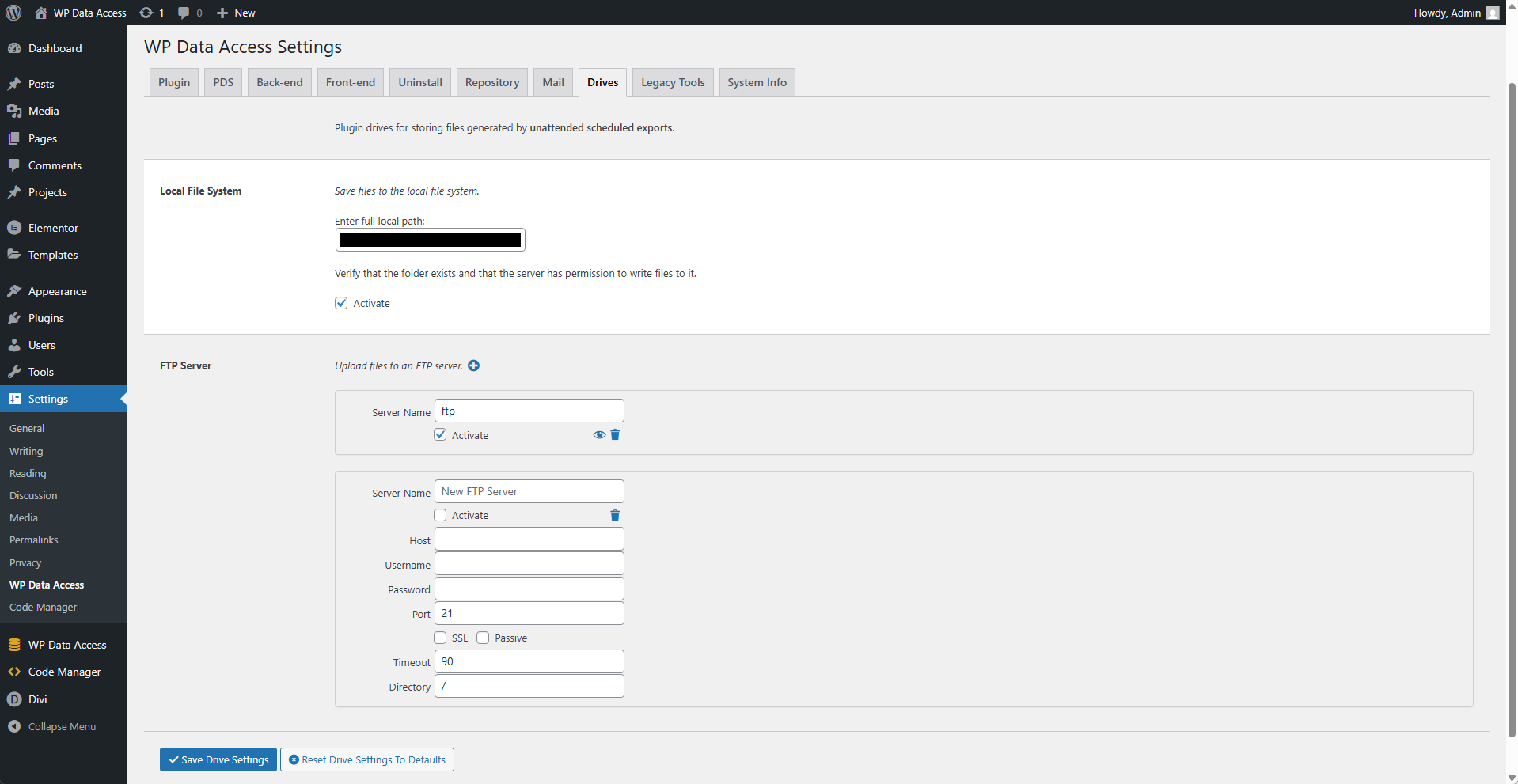
Local File System
Save files to the local file system.
⚙️ Local Path
Enter the full local path. For example: /home/peter/backup/
⚙️ Activate
Enabling this option activates the local folder, making it available for unattended scheduled queries, back-ups and exports.
FTP Server
Upload files to an FTP server.
📌 Allows configuring multiple FTP servers.
✚ Add New FTP Server
Click this button to start adding a new FTP server.
⚙️ Server Name
An internal name for identifying the FTP server within the plugin. This is the name that appears within the plugin tools.
⚙️ Activate
Enabling this option activates the FTP server, making it available for unattended scheduled queries, back-ups and exports.
👁 Show FTP Server Details
Expands the view to show the FTP server details.
🗑️ Delete FTP Server
Deletes the FTP server configuration.
📌 This action cannot be undone.
⚙️ Host
FTP server host name. For example: ftp.your-domain.com
⚙️ Username
Username required to log in to the FTP server.
⚙️ Password
Password required to log in to the FTP server.
⚙️ Port
FTP server port number. For example: 21
⚙️ SSL
Enable this option to use an SSL connection.
⚙️ Passive
Enable this option for passive mode.
⚙️ Timeout
FTP server connection timeout in seconds (default = 90).
⚙️ Directory
The directory on the FTP server where files should be stored.