
Appearance
Mail
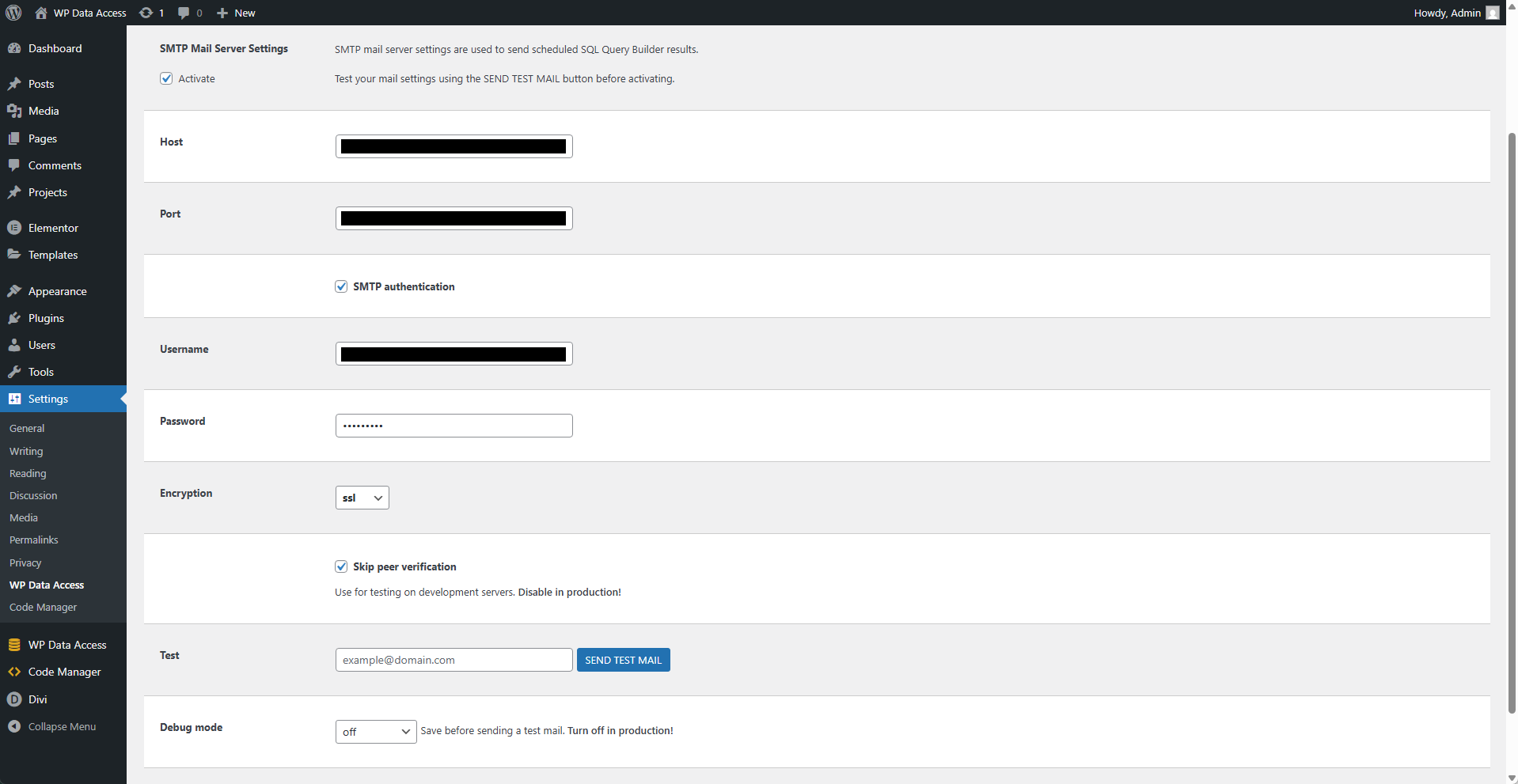
SMTP Mail Server Settings
These settings configure the SMTP mail server used to send scheduled SQL Query Builder results.
⚙️ Activate
Enabling this option activates the mail server settings, making them available in the Query Builder UI.
📌 Test your mail settings using the SEND TEST MAIL button before activating.
⚙️ Host
Enter the hostname of your SMTP server. For example: smtp.your-domain.com
⚙️ Port
Enter the port number of your SMTP server. For example: 465
⚙️ SMTP Authentication
Enable this option to require SMTP authentication.
⚙️ Username
The username required for SMTP authentication.
📌 Required if SMTP authentication is enabled.
⚙️ Password
The password required for SMTP authentication.
📌 Required if SMTP authentication is enabled.
⚙️ Encryption
Select an encryption method. Possible values are:
- none
- ssl
- tls
⚙️ Skip Peer Verification
Enable this option to skip SSL certificate verification when sending emails.
⚙️ Test
Enter an email address and press the SEND TEST MAIL button to send a test message to the specified address.
⚙️ Debug Mode
Select the level of debug information. Possible values are:
- off
- client
- server
- connection
- all